Readiness on every shift#
See whether readiness is covered, and sign that it has been checked.
How to#
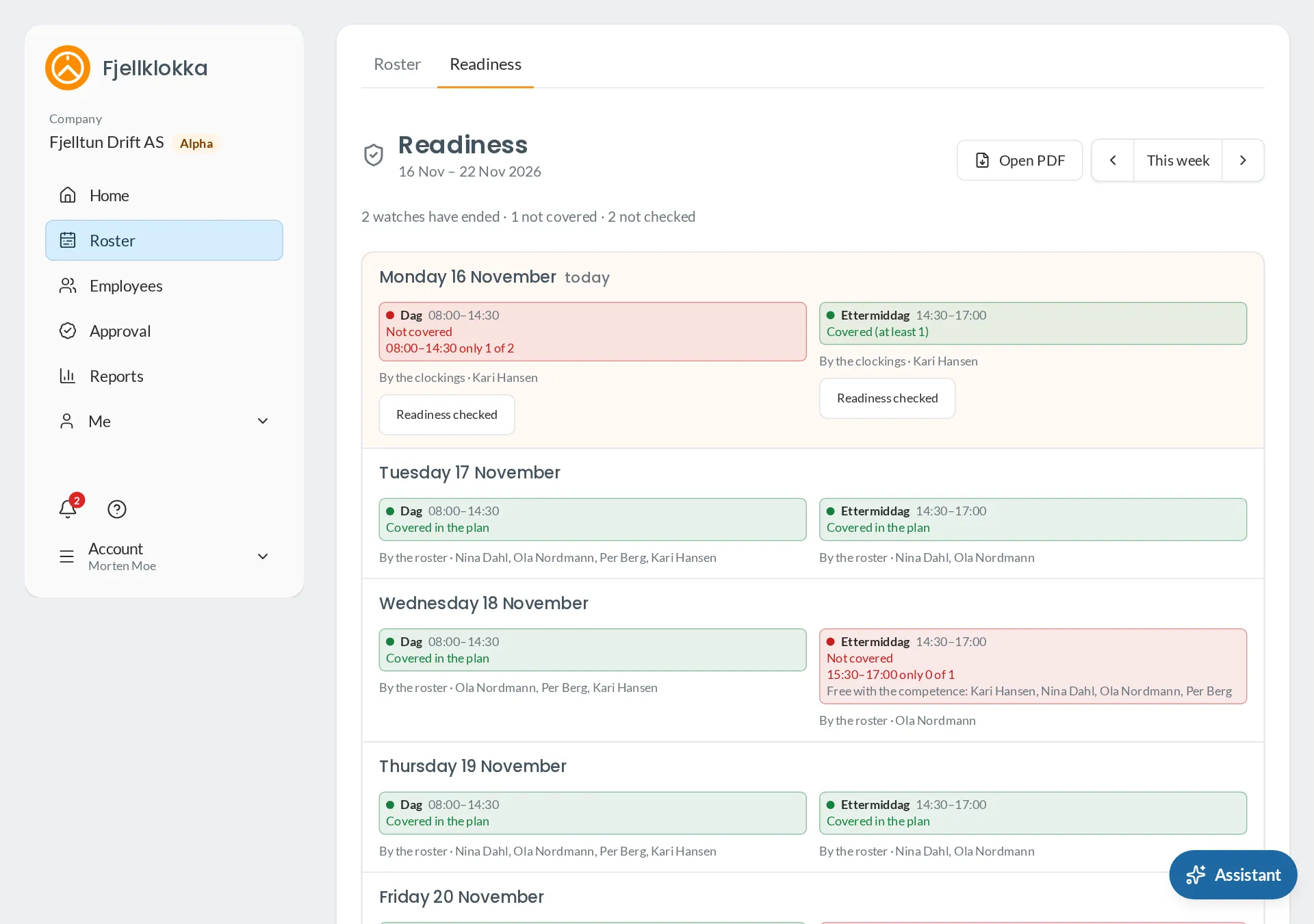
- On the Roster, the Readiness row shows each requirement for each day: green when enough people with the competence are planned, red with the gap when not — “12:00–16:00 only 1 of 2”.
- Give a shift to someone with the competence, and the light turns green.
- On Home you see today’s requirements from who is actually clocked in.
- Once the watch has begun, tap Readiness checked. Your name, the time and who was at work are kept.
- Under Roster → Readiness you see every day, checked or not, and download a PDF for a week or a whole season.
Good to know#
- Red is a warning, not a stop: you can still publish the week, and publishing says which watches are short.
- Someone away that day, or on a shift that is not working time, does not count.
- A check does not change if someone corrects a clocking afterwards.